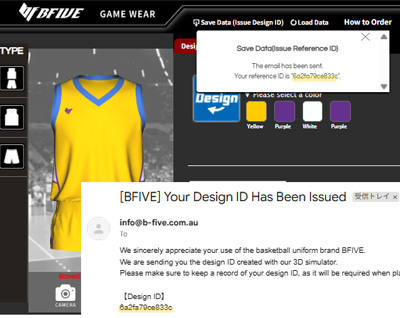
REORDER
You can easily place additional orders for previously created uniforms and apparel from the "Purchase History" section on your account screen.
If the person in charge is different from last time, you will need to register a new account and contact us with the following information: 1. Account number 2. Name of the person who placed the order last time.
*Please note that after the linking process is complete, previous customers will no longer be able to view their order history.
About account registration after placing an order
Once you register an account, you can easily place additional orders from the "Purchase History" section on your account screen.
1. Please enter the email address and name you used when placing your order.
On the "Account Registration After Ordering" page, please enter your email address and name, then click "Submit Registration Code".
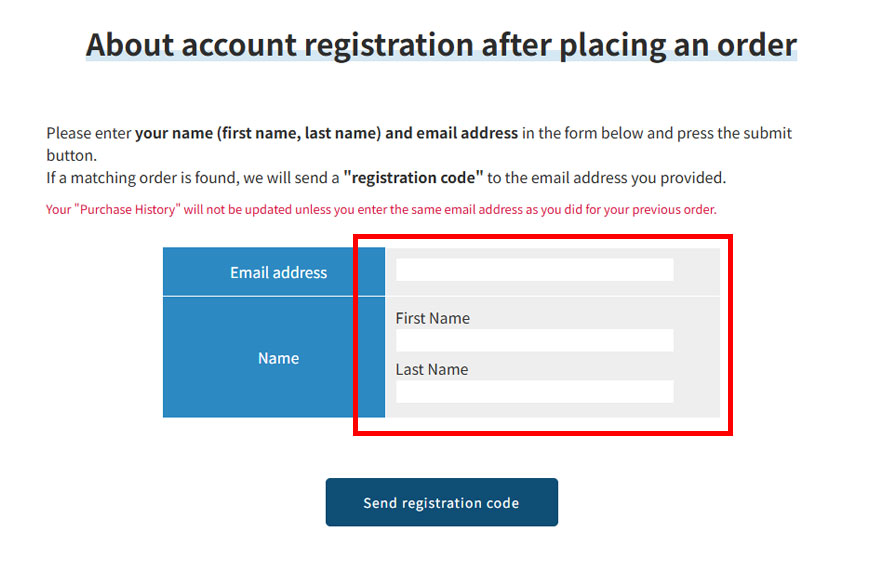
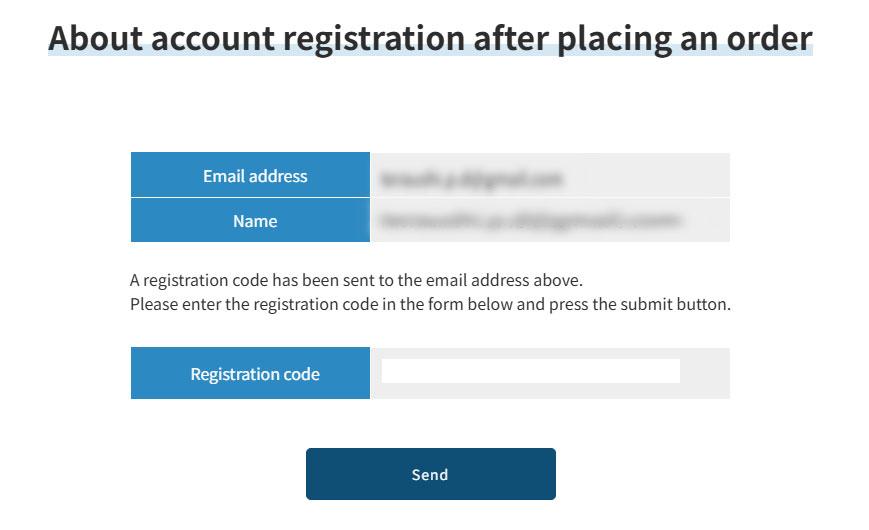
2.Send registration code
After clicking "Send Registration Code," you will be automatically redirected to the "Registration Code Input Screen." Please enter the code you received and click "Submit."
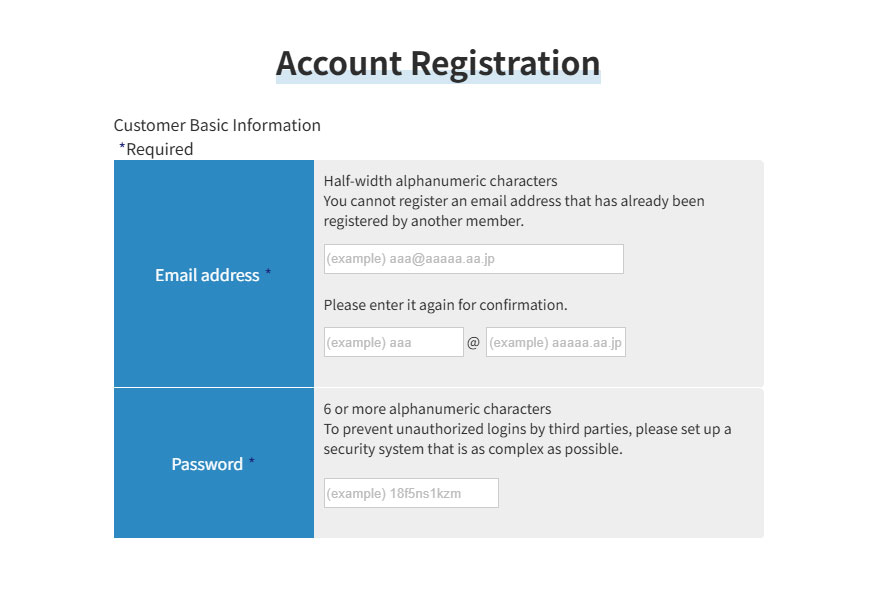
3.Register an account
Pressing "Submit" will take you to the customer information input screen.
Please review the information and register your account.
4.Check the automated email.
Once registration is complete, you will receive a "Registration Complete (Automated Email)" at the address you entered.
Please click the button below to register your account after placing your order.
Once your account registration is complete, you can place additional orders from your purchase history.
Regarding additional orders from your purchase history
If you already have an account, you can log in and place an additional order smoothly without having to enter product specifications or customer information.
Please follow the steps below to place your order.
1.Log in from the top of the screen.
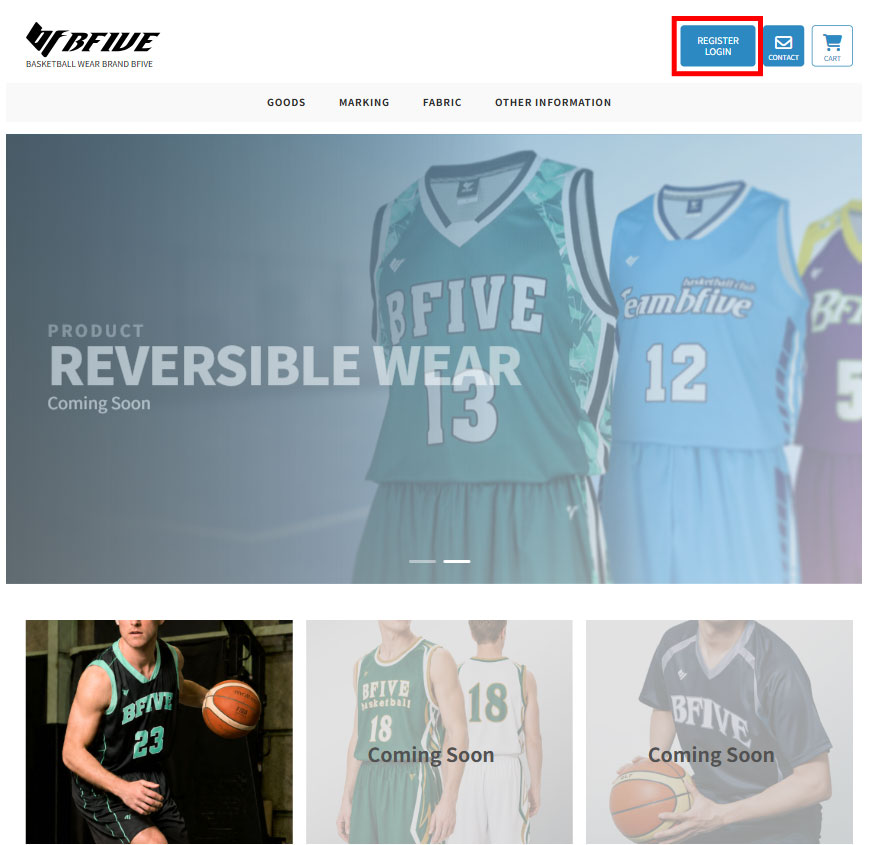
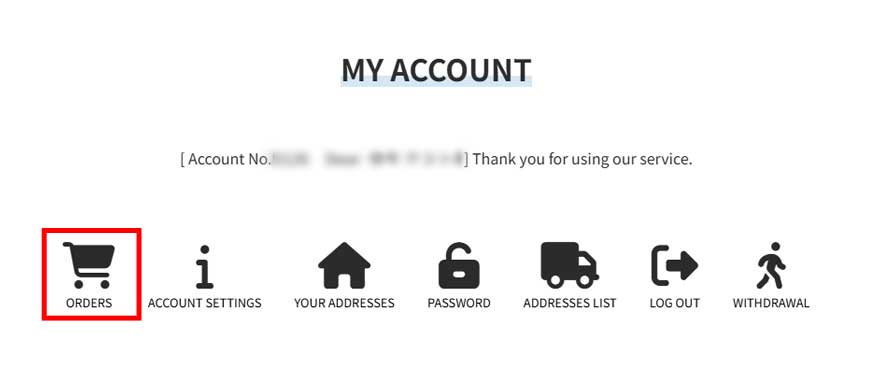
2.Click "View Order Information" under "Order Information" on the account top screen.
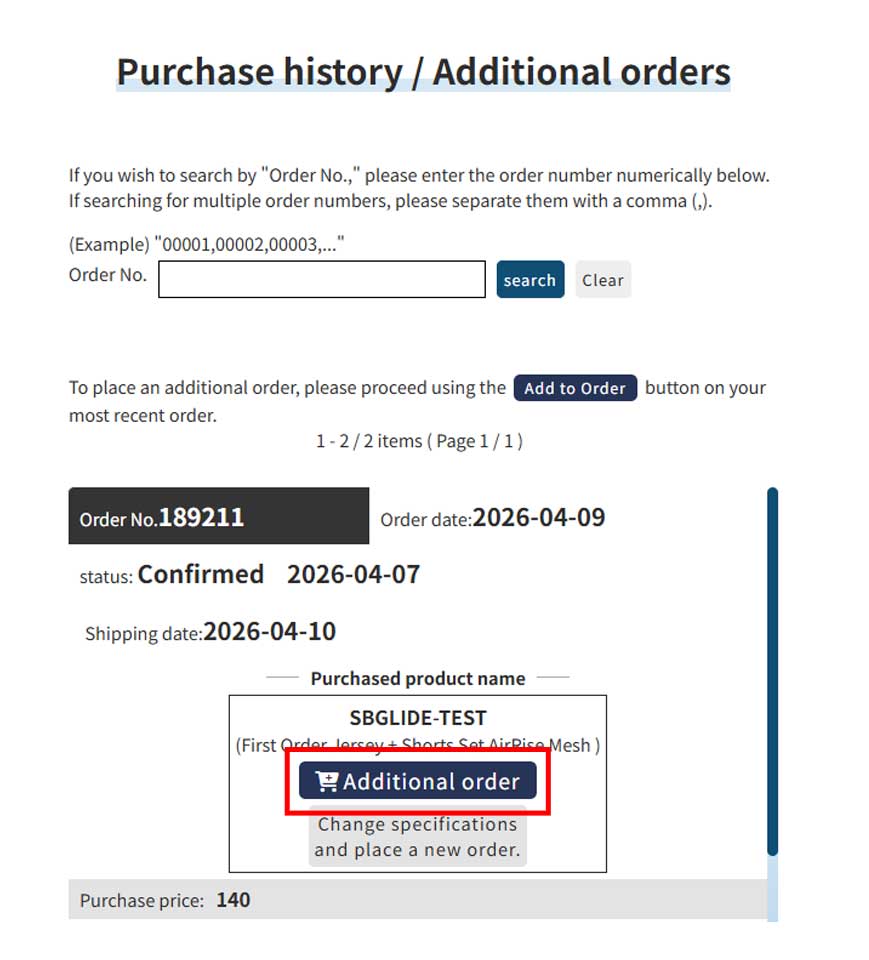
3.Click the Additional order
button for the order number you want to add.
4.Please change your order details (quantity, item number, etc.) and proceed to the confirmation screen.
The uniform colors, marking fonts, etc., have been automatically registered with the same settings as last time, so there is no need to enter or change them.
*Please be sure to change the purchase category to "Additional Order".
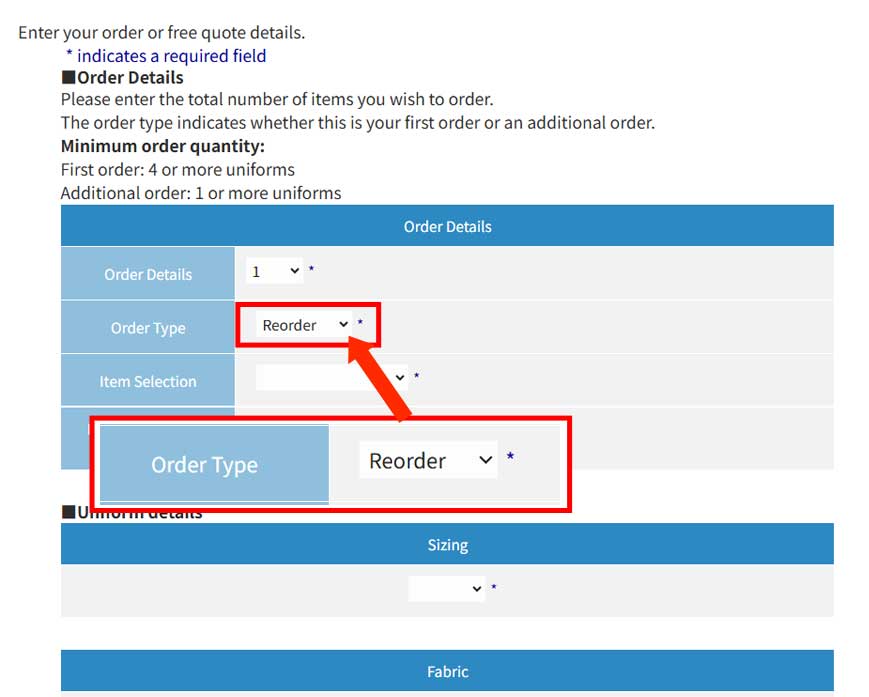
5.Once you have finished entering your information, click on "Proceed to Confirmation Screen" at the bottom and place your order following the same procedure as your first order.
Log in to place an additional order.
If you have any other questions or concerns,
If you have forgotten the email address used for your previous order, or if you have any other questions or concerns, please contact us through the inquiry form.