HOW TO ISSUE A TAX INVOICE
Customers who require receipts, delivery slips, or invoices can do so from their account screen.
Even if you haven't registered an account yet, you can create receipts, delivery slips, and invoices from your account screen once you register.
Instructions for registering an account and issuing documents after placing an order.
First, please register your account on the "Account Registration After Ordering" screen.
You can issue receipts, delivery slips, and invoices from the page after registration.
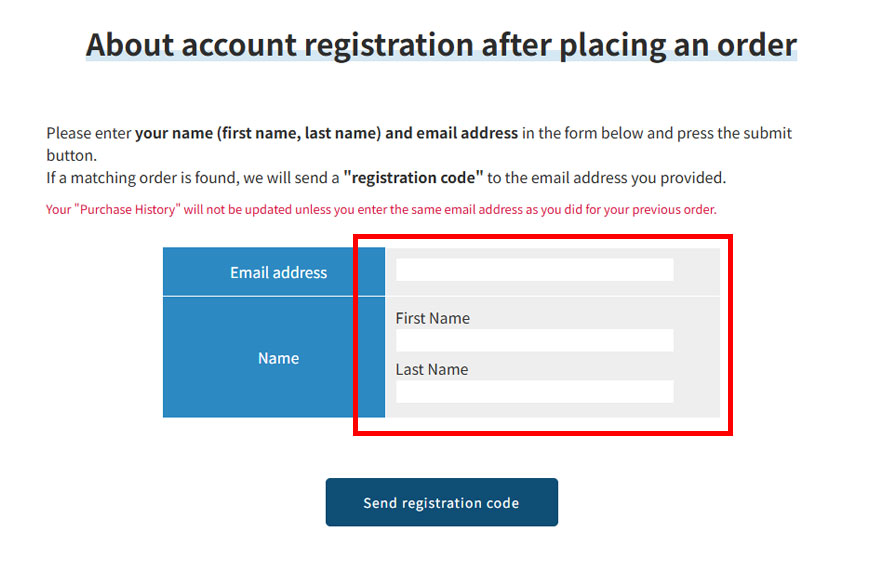
1.Please enter the email address and name you used when placing your order.
On the "Account Registration After Ordering" page, please enter your email address and name, then click "Submit Registration Code".
2.Send registration code
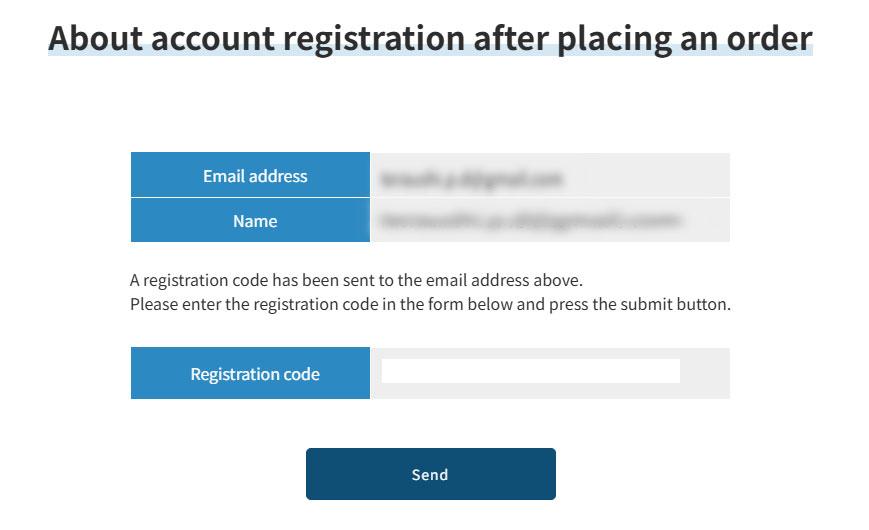
After clicking "Send Registration Code," you will be automatically redirected to the "Registration Code Input Screen." Please enter the code you received and click "Send."
3.Register an account
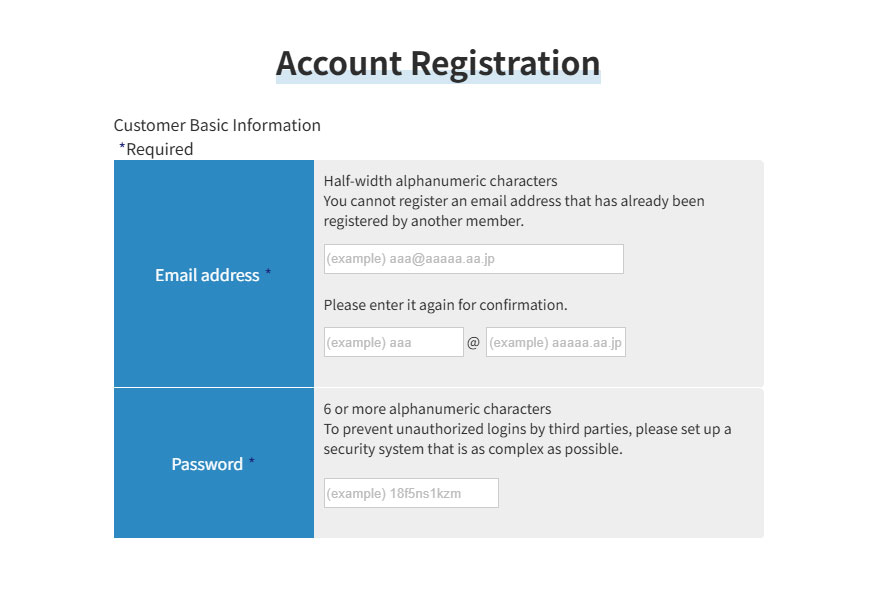
Pressing "Submit" will take you to the customer information input screen. Please review the information and register.
4.Check the automated email.
Once registration is complete, you will receive a "Registration Complete (Automated Email)" at the address you entered.
Please click the button below to register your account after placing your order.
Once registration is complete, you will be able to issue receipts, delivery slips, and invoices from your purchase history.
Procedure for issuing documents from your purchase history
If you already have an account, please log in. If you wish to issue a receipt, delivery note, or invoice, you can do so from your account screen. You can also issue receipts, delivery notes, and invoices for each order by opening the order history page. Please enter the recipient's name yourself.
1.Log in from the top screen.
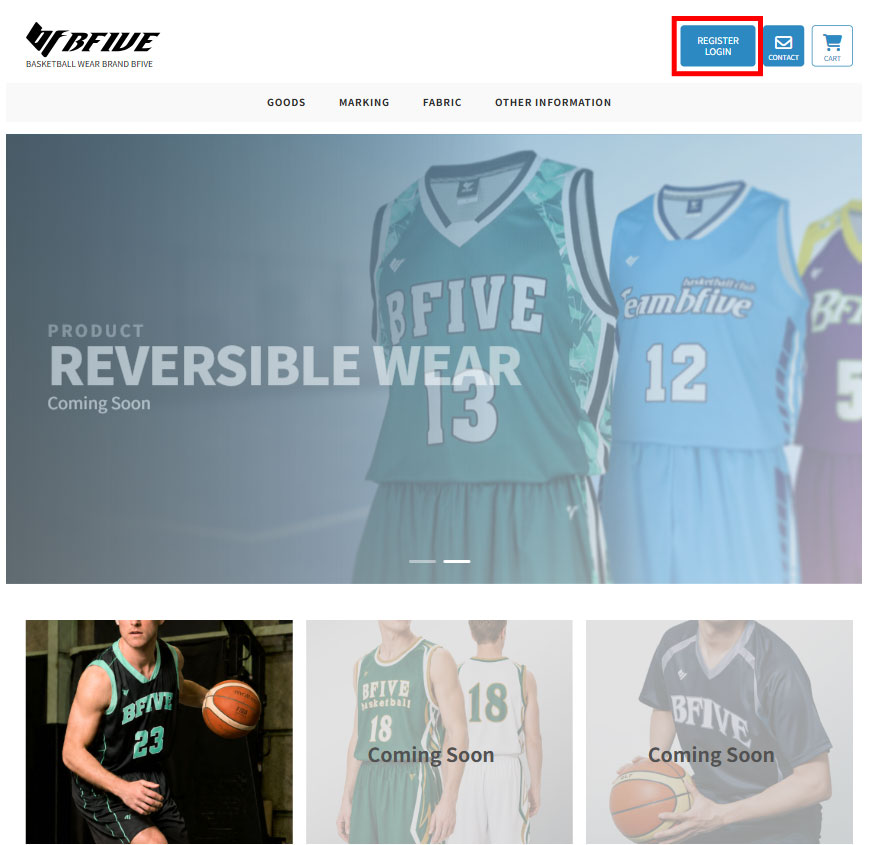
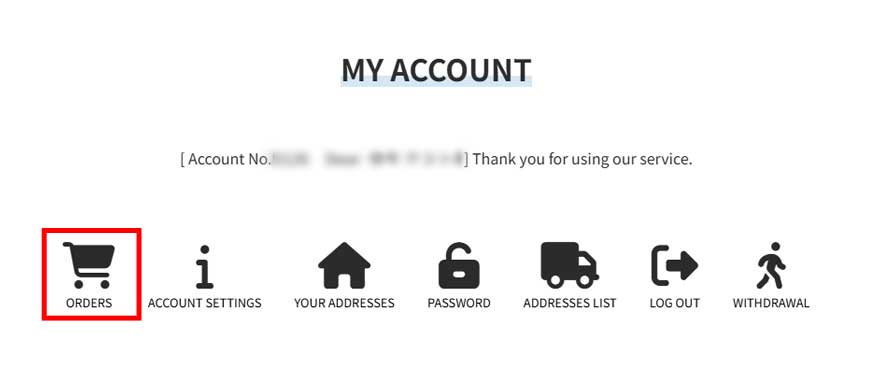
2.Click on "View Order Information" in the "Order Information" section on the account top screen.
3.Click the word "Issue" for each type of document (receipt, delivery note, invoice).
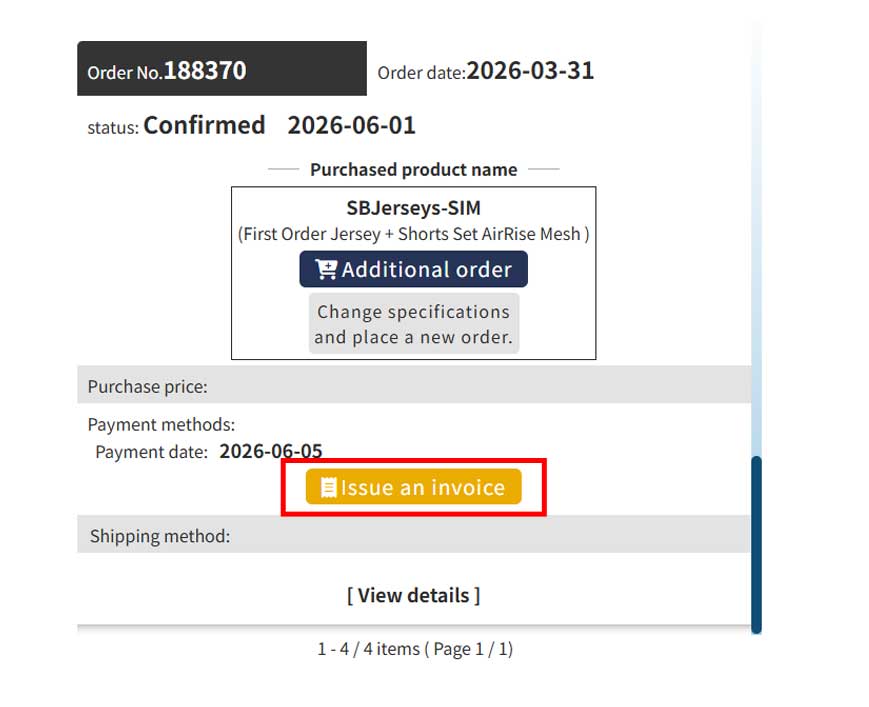
The receipt date will be the date we confirm receipt of payment.
After receiving your order, please send the "Receipt Date" and "Order No." issued by the shipping company (Yamato Transport or Yu-Pack) via the Inquiry Form.
Our staff will register the date of payment. Once our staff has completed the registration, we will be able to issue your receipt.
*Please select the appropriate disclaimer from the options provided by our company.
*This will be issued as a PDF, so please print it out for use.
*If you require two separate receipts, please contact us separately.
*This is an electronic receipt, so no revenue stamp is required.